
Introduction
The ISO image for TinyCore has a bug where you will see two mice. This is because the ISO has issues with the display adapter.
Resolution
This can be resolved by installing TinyCore to a disk image and installing xorg-7.7 from the repo.
As a workaround when using your mouse on these VMs you can move off the noVNC screen and continue your movement from the opposite side to control where you need to go.
Step by Step
Download TinyCore Plus.
distro.ibiblio.org/tinycorelinux/downloads.html
Start TinyCore with a bridged adapter and a disk in snapshot false
disk create qcow2 /home/ubuntu/tinycore.qcow2 100G
vm config disk /home/ubuntu/tinycore.qcow2
vm config cdrom /home/ubuntu/CorePlus-current.iso
vm config memory 256
vm config net 0
vm config snapshot false
vm launch kvm tiny
vm start tiny
When on the desktop, click on install.

Select Whole Disk, Click on sda, and click on the next arrow.
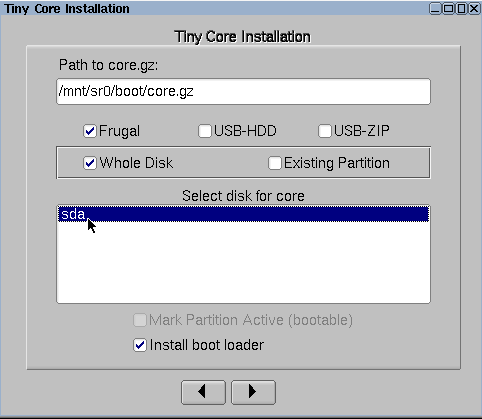
Click on the next arrow
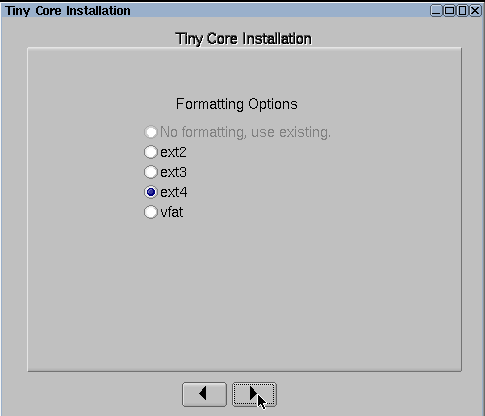
Click on the next arrow
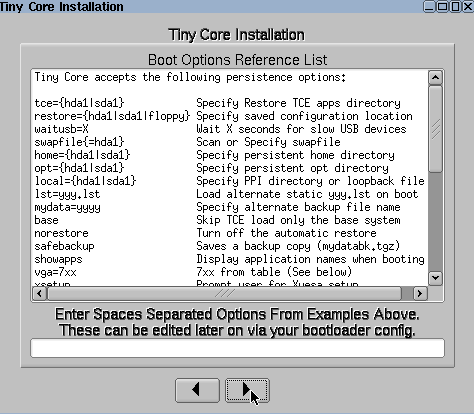
Click on the next arrow
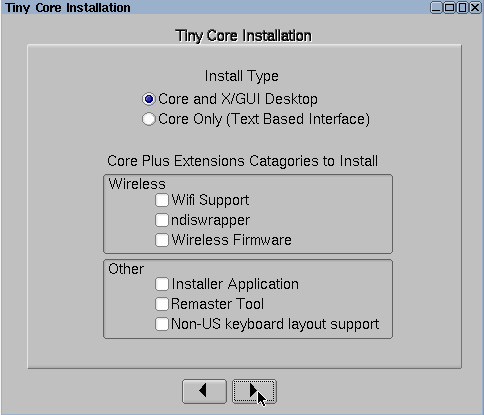
Click proceed
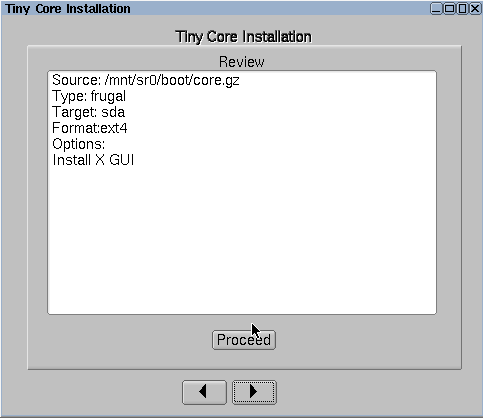
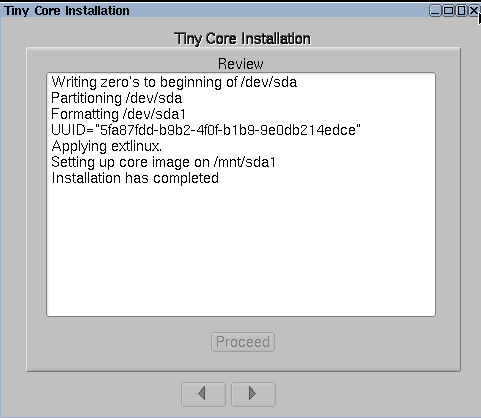
When finished close the window
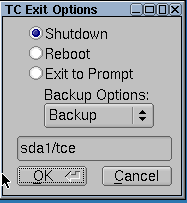
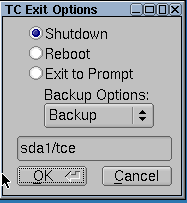
Click on the exit icon in the taskbar

Click OK to shutdown the VM.
Remove the ISO from the VM.
vm flush
clear vm config cdrom /home/ubuntu/CorePlus-current.iso
vm launch kvm tiny
vm start tiny
Turn the VM on and when on the desktop Click on Apps

Click Yes
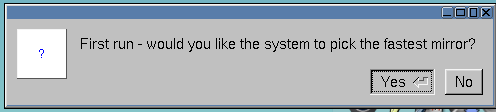
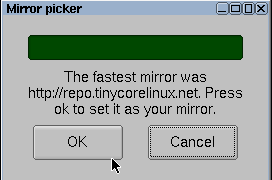
Click OK when the fastest mirror is selected.
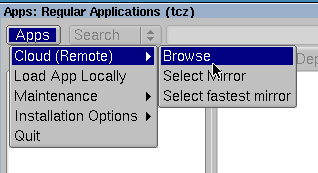
Click Apps->Cloud(Remote)->Browse
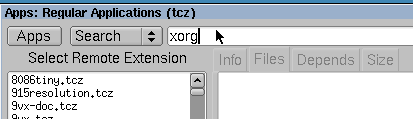
Search for xorg
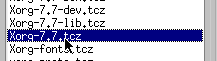
click on Xorg-7.7.tcz
click Go
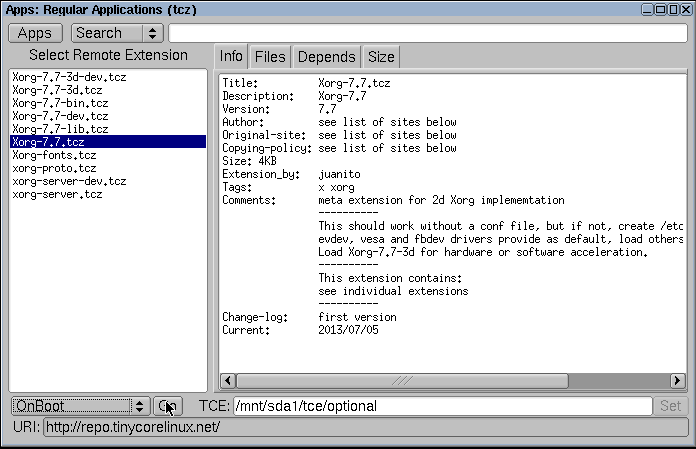
Wait for the download to finish and install

Click on the X to close the Apps window
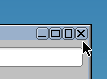
Click on exit

Click OK to turn off the machine
Copy this image to your minimega machine.
Booting tinycore with Xorg
minimega -attach
clear vm config
vm config memory 128
vm config disk /home/ubuntu/tiny.qcow
vm launch kvm tiny
vm start tiny
Broken:
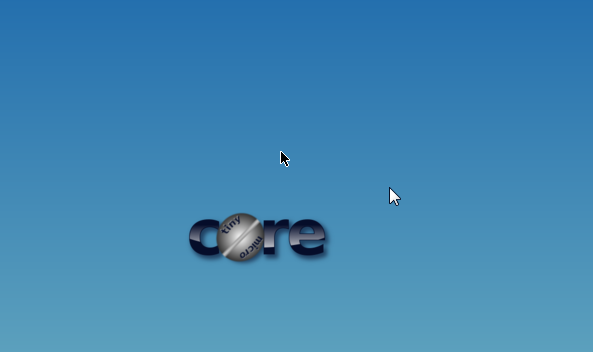
Fixed:

Fixing the viewport
You may notice the mouse lines up, but the bottom half of the screen scrolls. You need to create a valid xorg.conf and set a vga resolution as a kernel append argument.
To set a kernel append argument
sudo vi /mnt/sda1/tce/boot/extlinux/extlinux.conf
after quiet add
vga=791
To set an xorg.conf
sudo vi /etc/X11/xorg.conf
And paste the following file
Section "ServerLayout"
   Identifier     "X.org Configured"
   Screen      0  "Screen0" 0 0
   InputDevice    "Mouse0" "CorePointer"
   InputDevice    "Keyboard0" "CoreKeyboard"
EndSection

Section "Files"
ModulePath   "/usr/local/lib/xorg/modules"
   FontPath     "/usr/local/lib/X11/fonts/misc/"
   FontPath     "/usr/local/lib/X11/fonts/TTF/"
   FontPath     "/usr/local/lib/X11/fonts/OTF/"
   FontPath     "/usr/local/lib/X11/fonts/Type1/"
   FontPath     "/usr/local/lib/X11/fonts/100dpi/"
   FontPath     "/usr/local/lib/X11/fonts/75dpi/"
EndSection

Section "Module"
   Load  "glx"
EndSection

Section "InputDevice"
   Identifier  "Keyboard0"
   Driver      "kbd"
EndSection

Section "InputDevice"
   Identifier  "Mouse0"
   Driver      "mouse"
   Option       "Protocol" "auto"
   Option       "Device" "/dev/input/mice"
   Option       "ZAxisMapping" "4 5 6 7"
EndSection

Section "Monitor"
   Identifier   "Monitor0"
   VendorName   "Monitor Vendor"
   ModelName    "Monitor Model"
EndSection

Section "Device"
   Identifier  "Card0"
   Driver       "vesa"
   BusID       "PCI:0:2:0"
EndSection

Section "Screen"
   Identifier "Screen0"
   Device     "Card0"
   Monitor    "Monitor0"
   DefaultDepth   16
   SubSection "Display"
      Virtual 1024 768
      Depth   16
      Modes   "1024x768"
   EndSubSection
EndSection
With TinyCore in order to save files between boots they need to be added to a list
sudo vi /opt/.filetool.lst
This list needs to be processed by the program filetool.sh
sudo filetool.sh -b
On reboot this should fix the view port issue.
Authors
The minimega authors
30 May 2017